Pane Search
Ctrl+F searches the focused pane live across its entire scrollback: every match highlighted, Enter/Shift+Enter navigation, case and regex modes, and a scrollbar overview of match rows.
winTerm 1.4.3 brings Pane Search across each pane's full scrollback and reliable click-to-position editing for the current shell command. Small pointer movement below the drag threshold remains a click, while selection keeps its established behavior.
winTerm makes long-running work visible and past commands reusable inside each pane, while keeping the native tabs, splits, shells, and privacy model you rely on.
Ctrl+F searches the focused pane live across its entire scrollback: every match highlighted, Enter/Shift+Enter navigation, case and regex modes, and a scrollbar overview of match rows.
Click inside the current shell-integrated editable command to move its text cursor. Small movement below the drag threshold remains a click; drag and multi-click selection, hyperlinks, and VT mouse applications keep priority.
A per-pane history of the commands you ran, over OSC 133 shell integration: filter, load without executing, copy, jump to output, and trustworthy status.
See determinate and indeterminate work in each pane through a responsive Rainbow Arc, luminous head, glow, and optional sparks.
Split above, below, left, or right of the focused pane—exactly where the next shell belongs.
Drag pane borders with quarter, third, and 50% snap points, Alt bypass for free resizing, resize undo and redo, and Balance Panes.
Keep separate terminal sessions in native top-level tabs and open another profile from the tab bar.
Move naturally between PowerShell 7, Windows PowerShell, Command Prompt, and discovered WSL profiles.
Use built-in themes, app-private programming fonts, ANSI color, Unicode, CJK text, and emoji.
Multiline and suspicious pastes ask for confirmation before they reach the shell.
Command text, terminal output, clipboard content, working directories, and usage analytics are not collected.
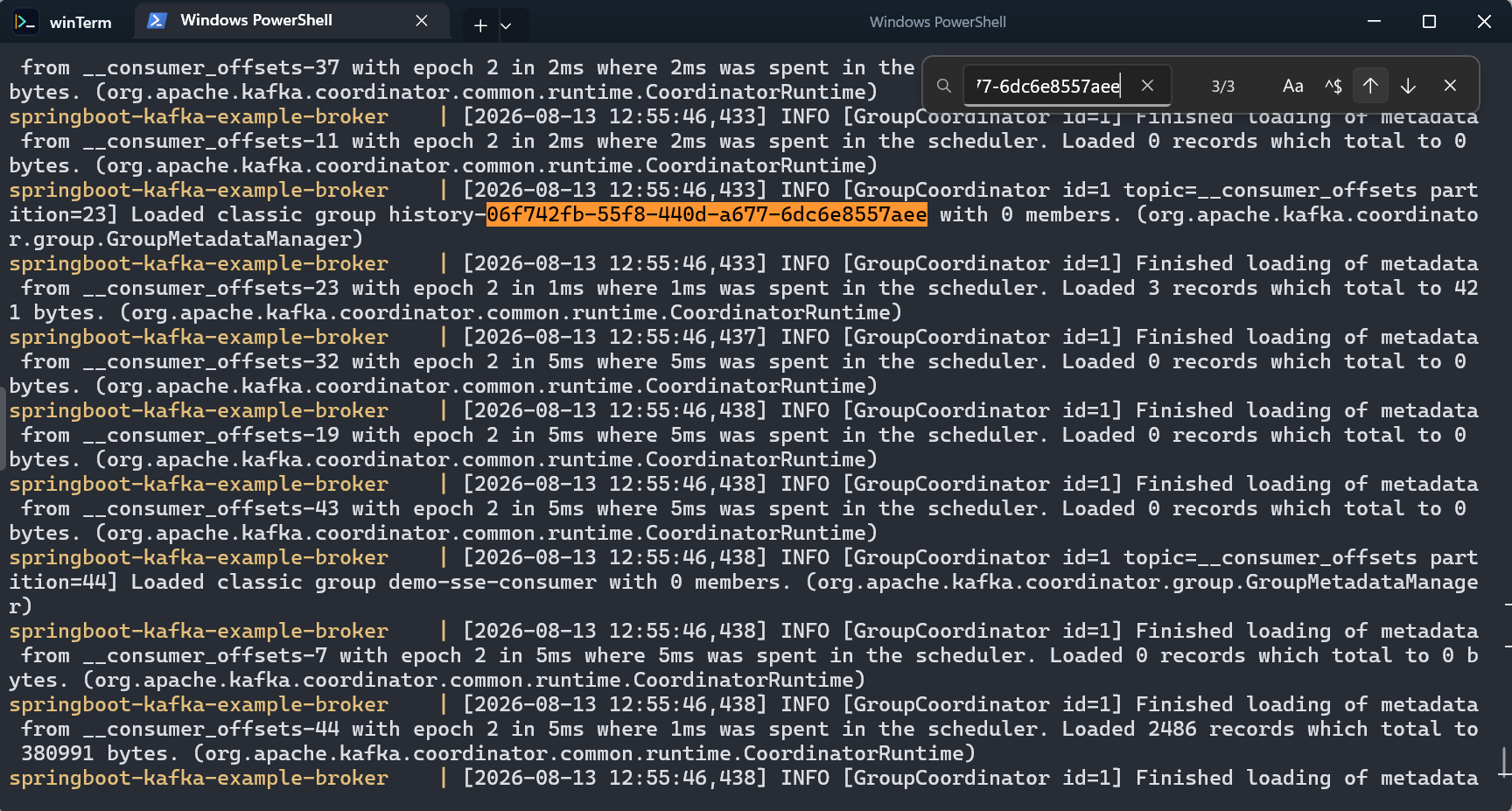
Press Ctrl+F and search the focused pane only — live while you type, across the entire scrollback, with every match highlighted at once. Enter and Shift+Enter step through matches with wrap-around, and case-sensitive and regex modes are one toggle away.
The scrollbar shows an overview marker for every matching row, with the current match emphasized, and the search keeps up even while output streams continuously — tailing logs stays searchable.
Every pane keeps its own in-memory list of the commands it ran, built from OSC 133 shell integration only — winTerm never guesses where a prompt begins. Bare PowerShell profiles get integration automatically.
Filter with a literal search, load a command onto the input line without executing it, copy a command or its output, jump to where output began, and read succeeded, failed, or running marks the shell actually reported.
While a command runs, its tab carries a progress arc and a luminous head sweeps the track at the bottom of the pane, so a glance tells you which pane is busy.
Visual effects adapt automatically — rainbow animation, glow, and sparks scale back to a static gradient or solid indicator when conditions call for it — and progress always stays attached to the pane that produced it.
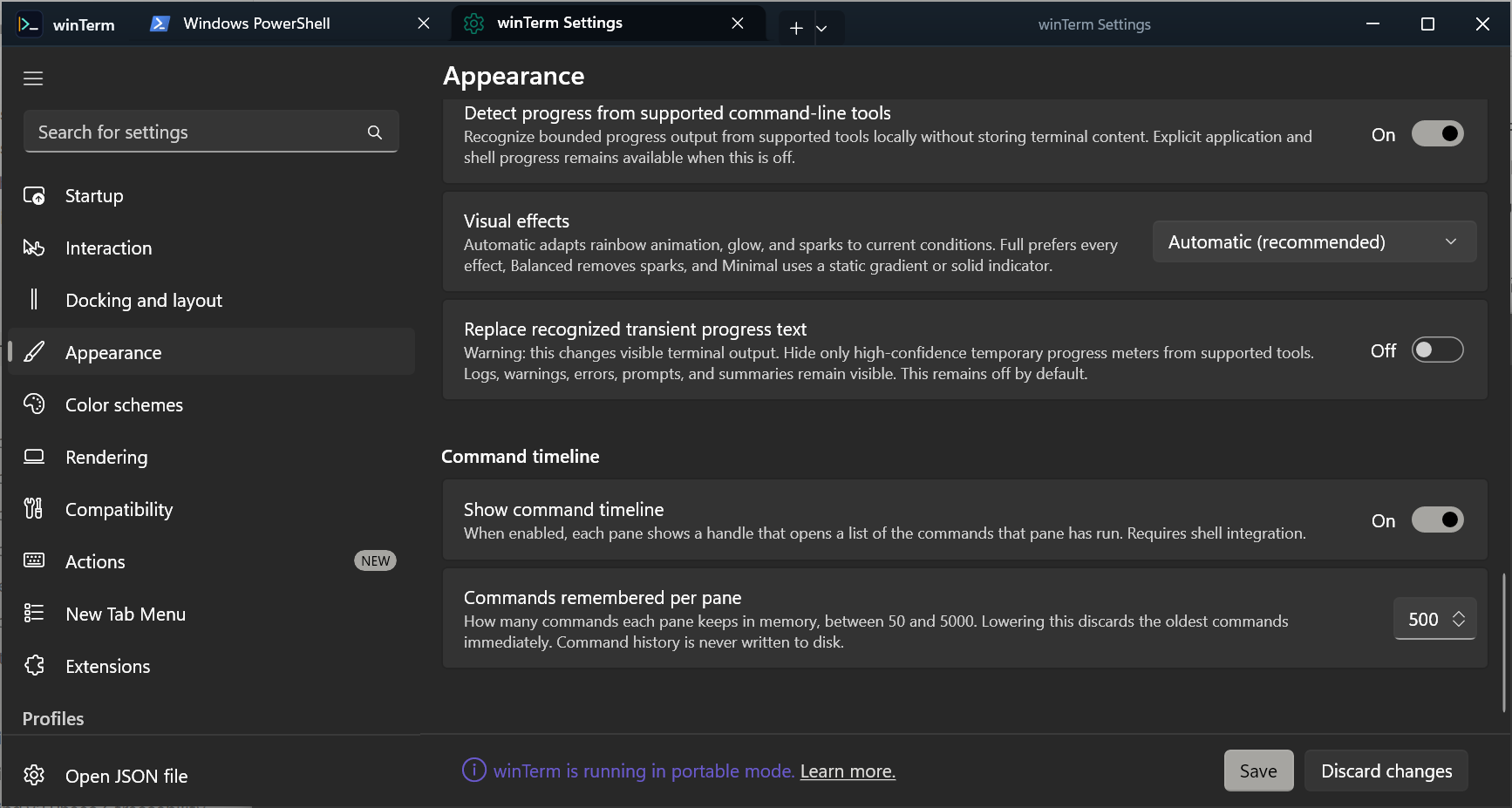
The Appearance page now groups the Command timeline controls — visibility and the per-pane history limit — alongside the four Visual Progress controls.
Detection happens locally, transient-text replacement remains a separate opt-in choice, and an out-of-range history limit is clamped instead of failing the settings load.
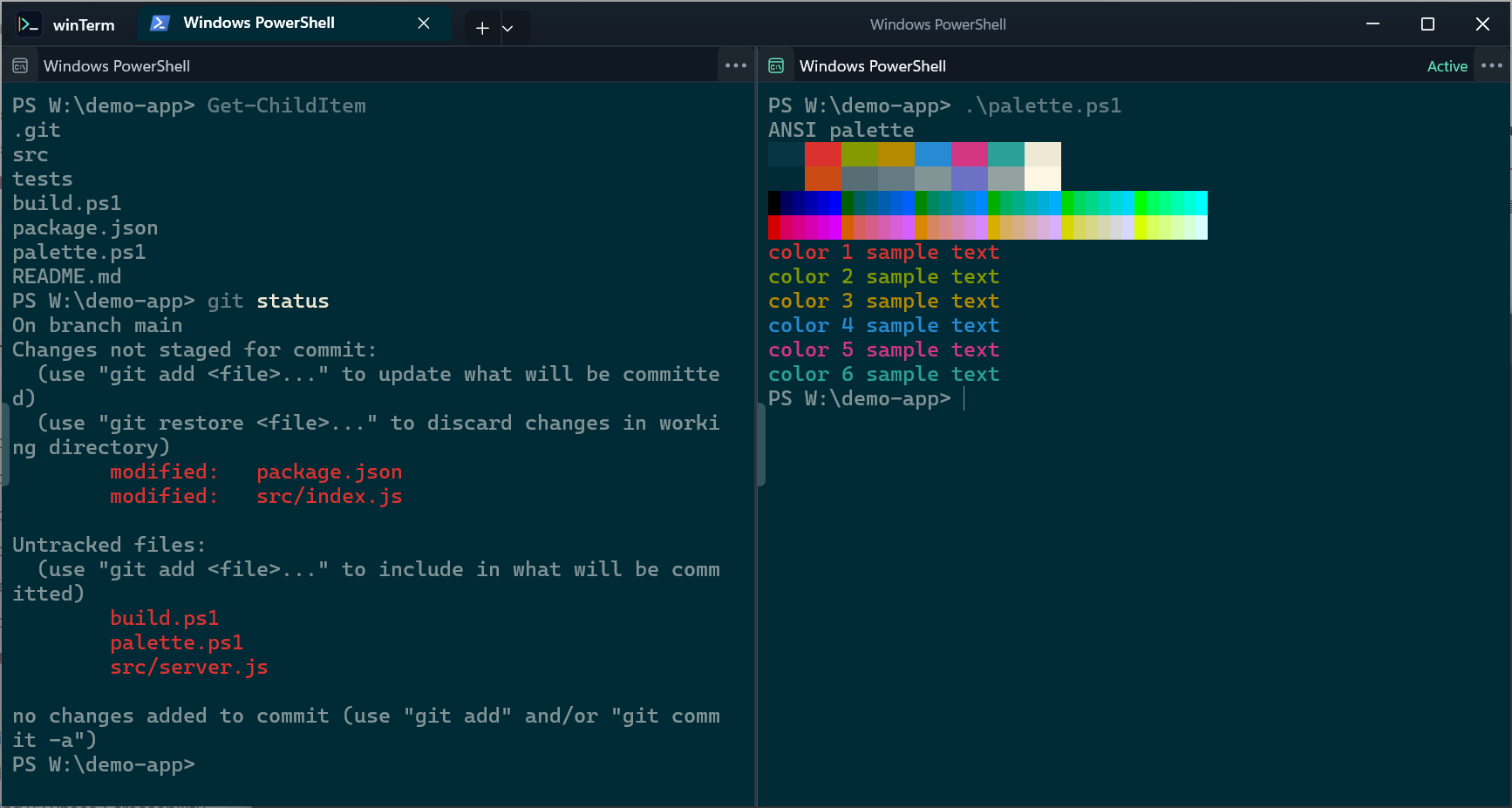
The Timeline, pane headers, and terminal content follow the color scheme you choose — built-in schemes such as One Half Light and Solarized Dark render consistently across split layouts.
Native tabs, pane headers, active state, overflow controls, and narrow split dividers remain visible without turning the terminal into a dashboard.
Every image is a sanitized capture of the actual winTerm application at its default window size, running fully synthetic demo shell content, so no personal machine or work is exposed.
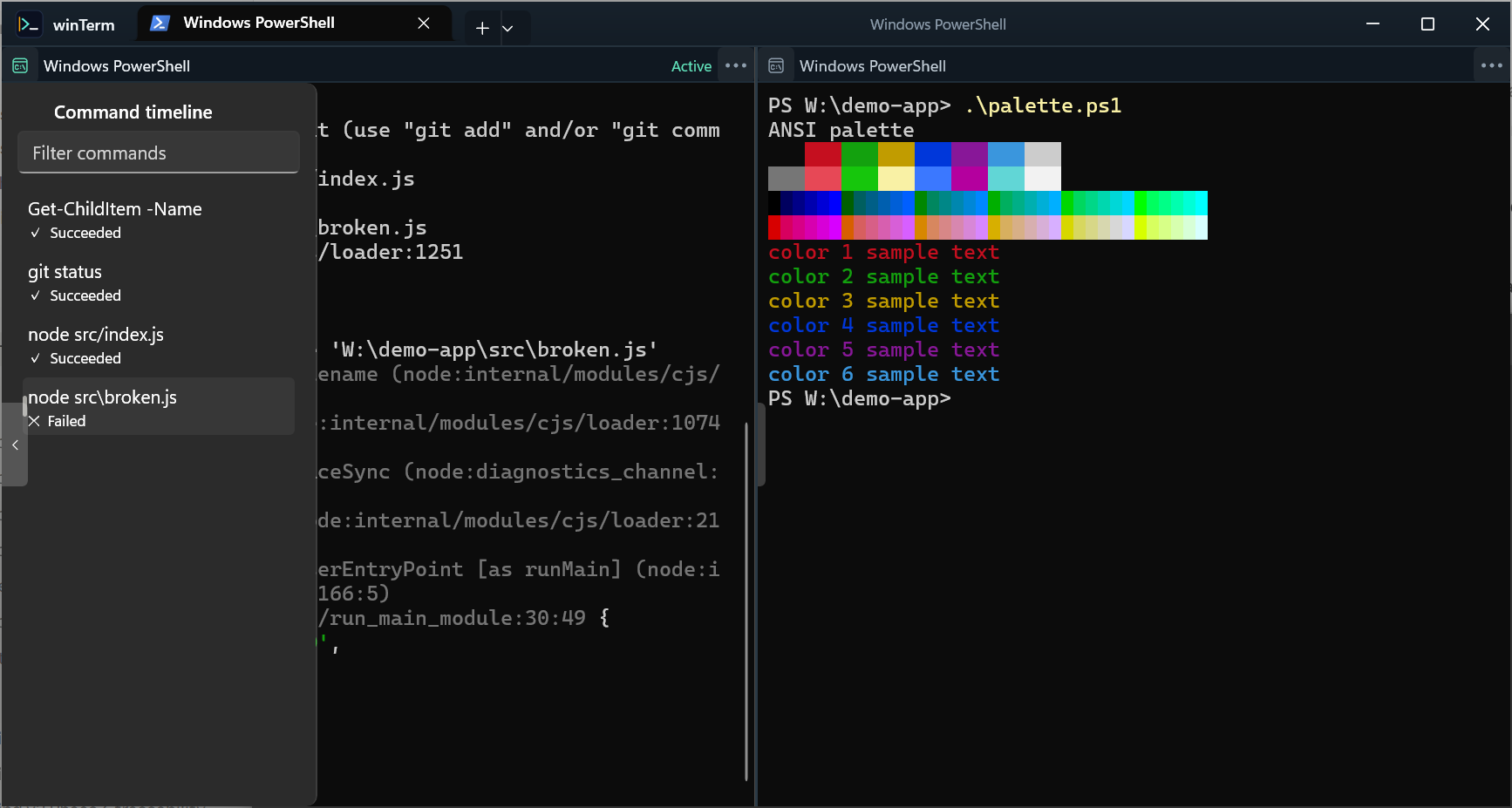
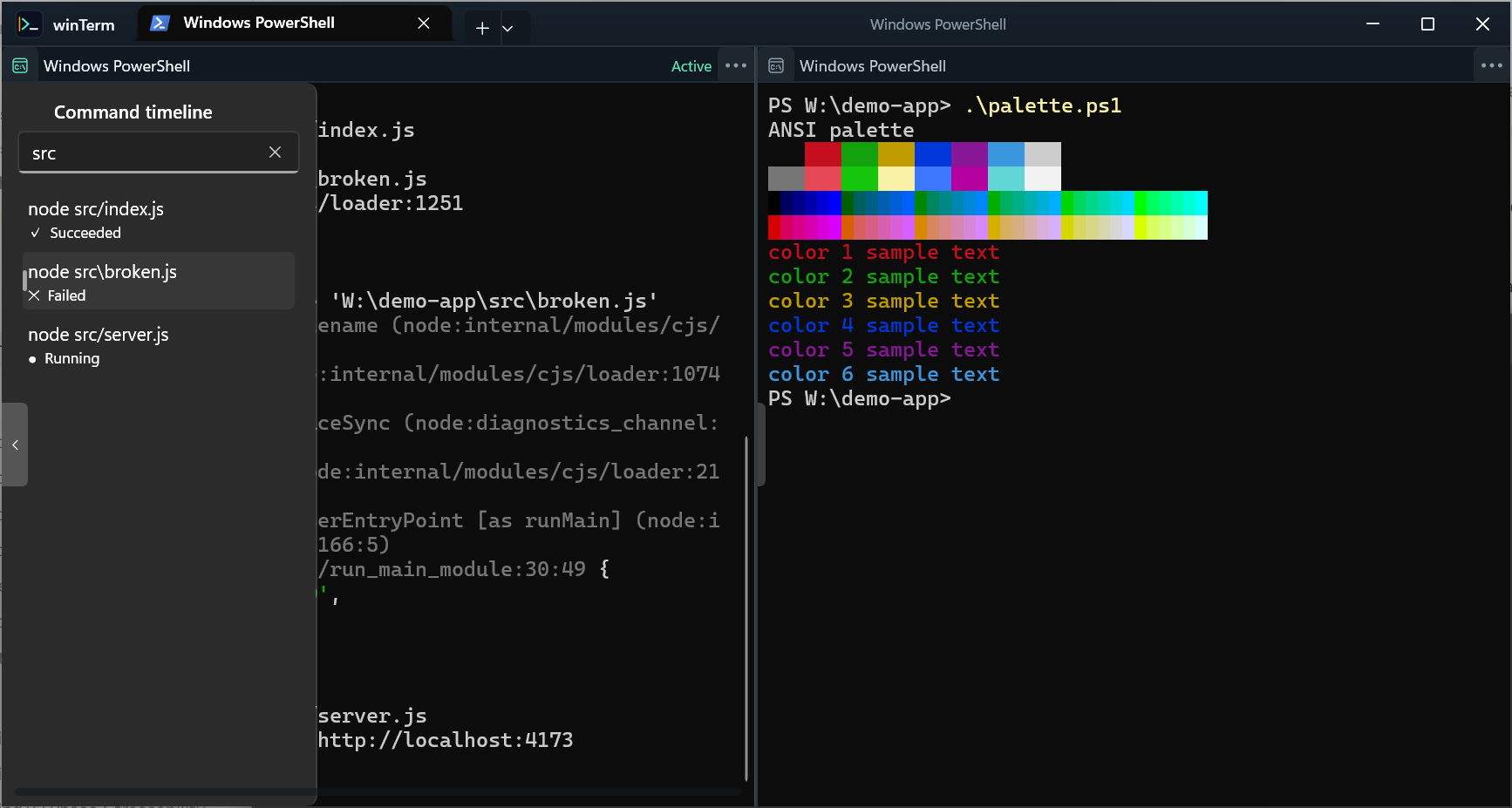
The per-pane history opens next to the terminal, listing commands with trustworthy succeeded, failed, and running marks.
A literal, case-insensitive filter narrows the list; Enter loads a command onto the input line without ever running it.
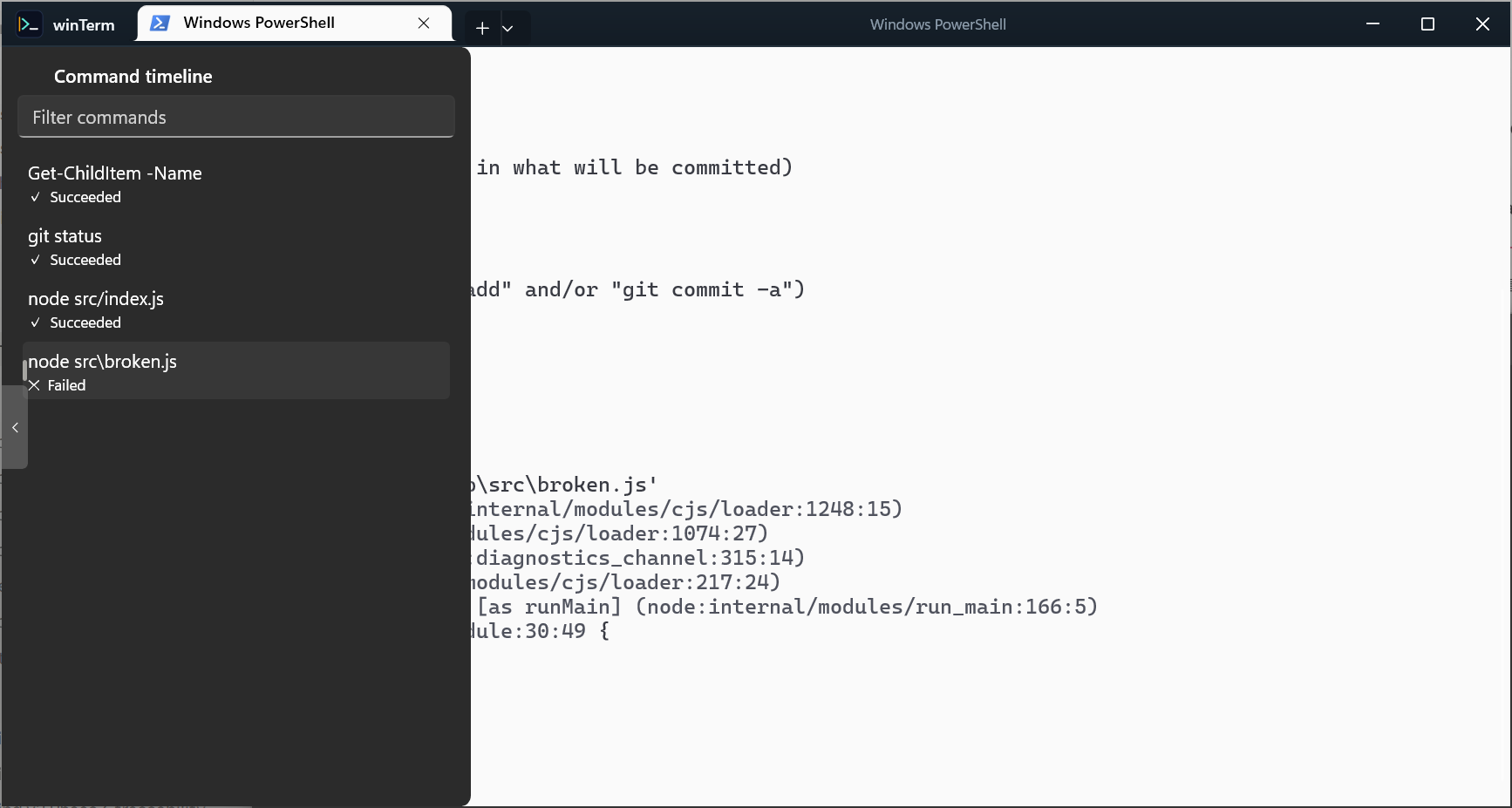
The Timeline and terminal follow your color scheme — here the built-in One Half Light.
Split panes rendered in Solarized Dark with ANSI colors and compact pane headers.
The tab progress arc and the sweeping luminous head stay attached to the pane that produced the work.
Show or hide the Timeline and choose how many commands each pane remembers, from 50 to 5000.
winTerm is designed around the expectation that terminal activity is private. General usage analytics are not collected, update checks are off, and crash upload is off and opt-in.
Diagnostic bundles are generated only when you explicitly request them, exclude sensitive content by default, and should be reviewed before sharing.
Read the privacy policy →Your command text stays in your terminal session.
Screen contents are not sent as analytics.
Paste protection does not turn your clipboard into telemetry.
Local paths are not sent as analytics or included in public website visuals.
Utilities from the winTerm project for everyday terminal work. Each one processes your input locally — nothing is uploaded. Browse all tools →
About the current installer: The 1.4.3 Setup EXE is not code-signed, so Windows may show an Unknown Publisher or SmartScreen warning. Download only from the official GitHub Release and verify files against SHA256SUMS.txt from the same Release. Do not disable Windows security.
The Setup EXE supports current-user and all-users installation, and the Portable ZIP runs after extraction with no installation. winTerm keeps its data in its own application-data folder and never replaces Windows Terminal or wt.exe. See the Code signing policy, installation guide, and uninstall guide.
The stable release provides a Setup EXE and a Portable ZIP for Windows 11 x64, with SHA-256 checksums on the same Release page.
26 GitHub release downloads
Reliable Click to position cursor behavior, Pane Search, Command Timeline, Visual Progress, native tabs, and directional splits in one stable release.